🍊 Clash Verge · 使用教程

Clash Verge
订阅与使用教程

跟着 8 步操作,导入订阅、选好节点、开启系统代理,即刻畅游。Windows / macOS / Linux 通用。

中文教程
1

下载并安装 Clash Verge

下载 Clash Verge 桌面客户端并完成安装。

2

复制你的订阅链接

登录用户中心,找到「一键订阅 / Clash」,复制订阅链接备用。

🔒订阅链接仅供本人使用,请勿分享给他人,以免流量被占用。
3

打开订阅页面

打开 Clash Verge,点击左侧菜单的 「订阅」

4

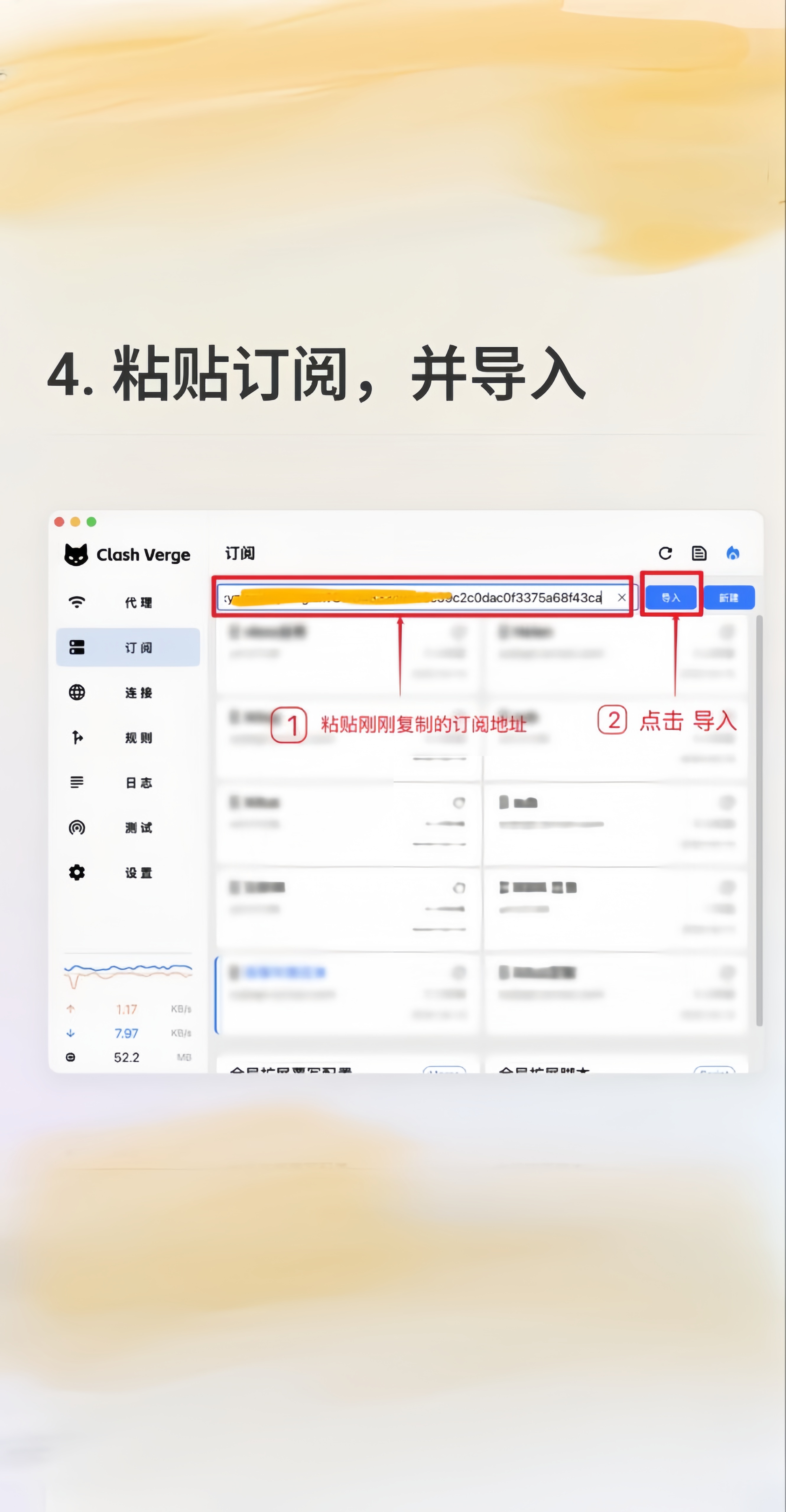
粘贴订阅,并导入

1把刚刚复制的订阅链接粘贴到顶部输入框;
2点击右侧 「导入」

Clash Verge 粘贴订阅链接并点击导入
粘贴链接 → 点击「导入」
5

导入成功

稍等片刻,右上角出现 「导入订阅成功」 即为成功,订阅卡片下方会显示剩余流量等信息。

💡如果等待较久没有反应,关闭弹窗、重新导入一次即可。
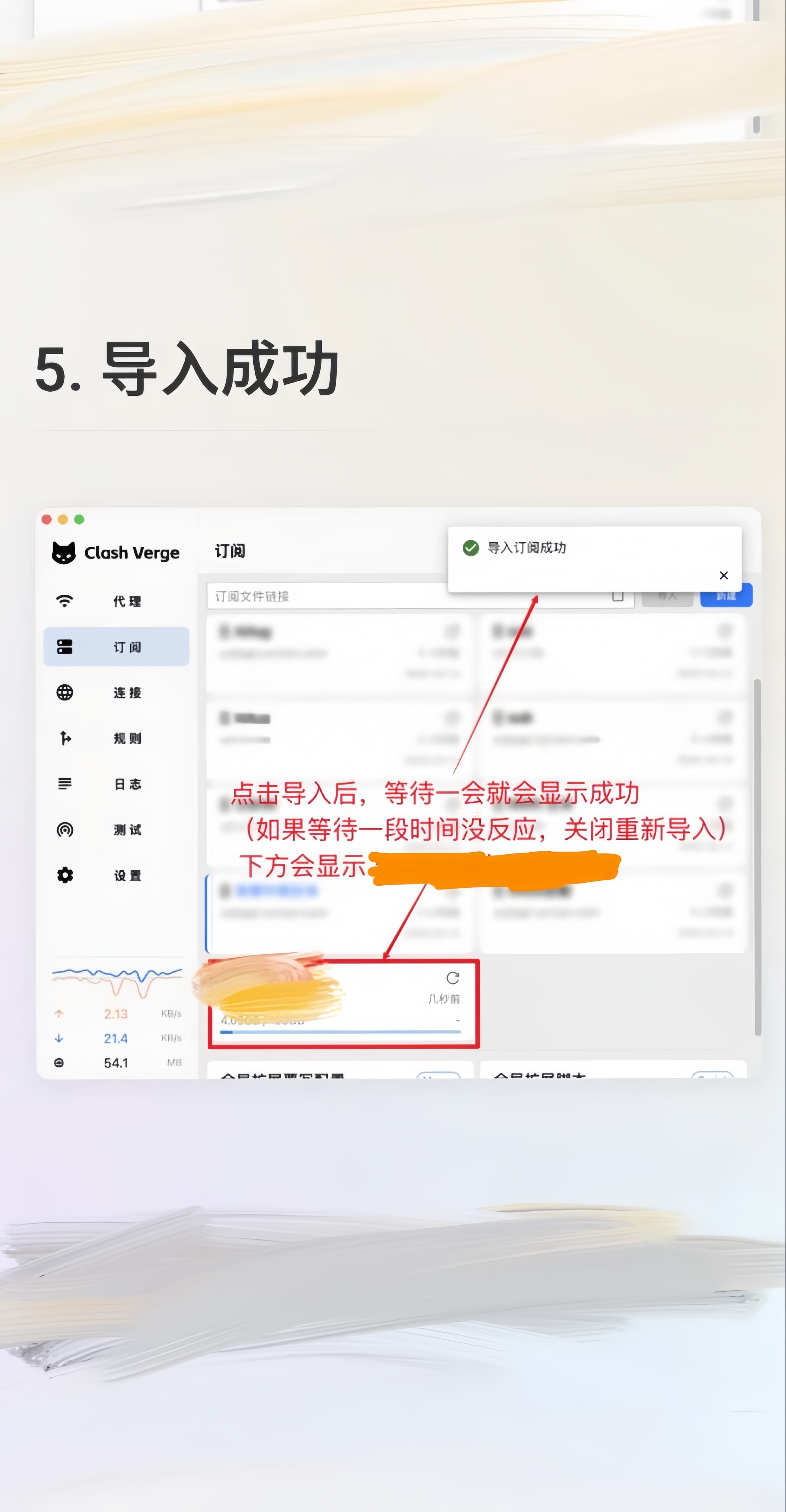
Clash Verge 导入订阅成功提示
出现「导入订阅成功」
6

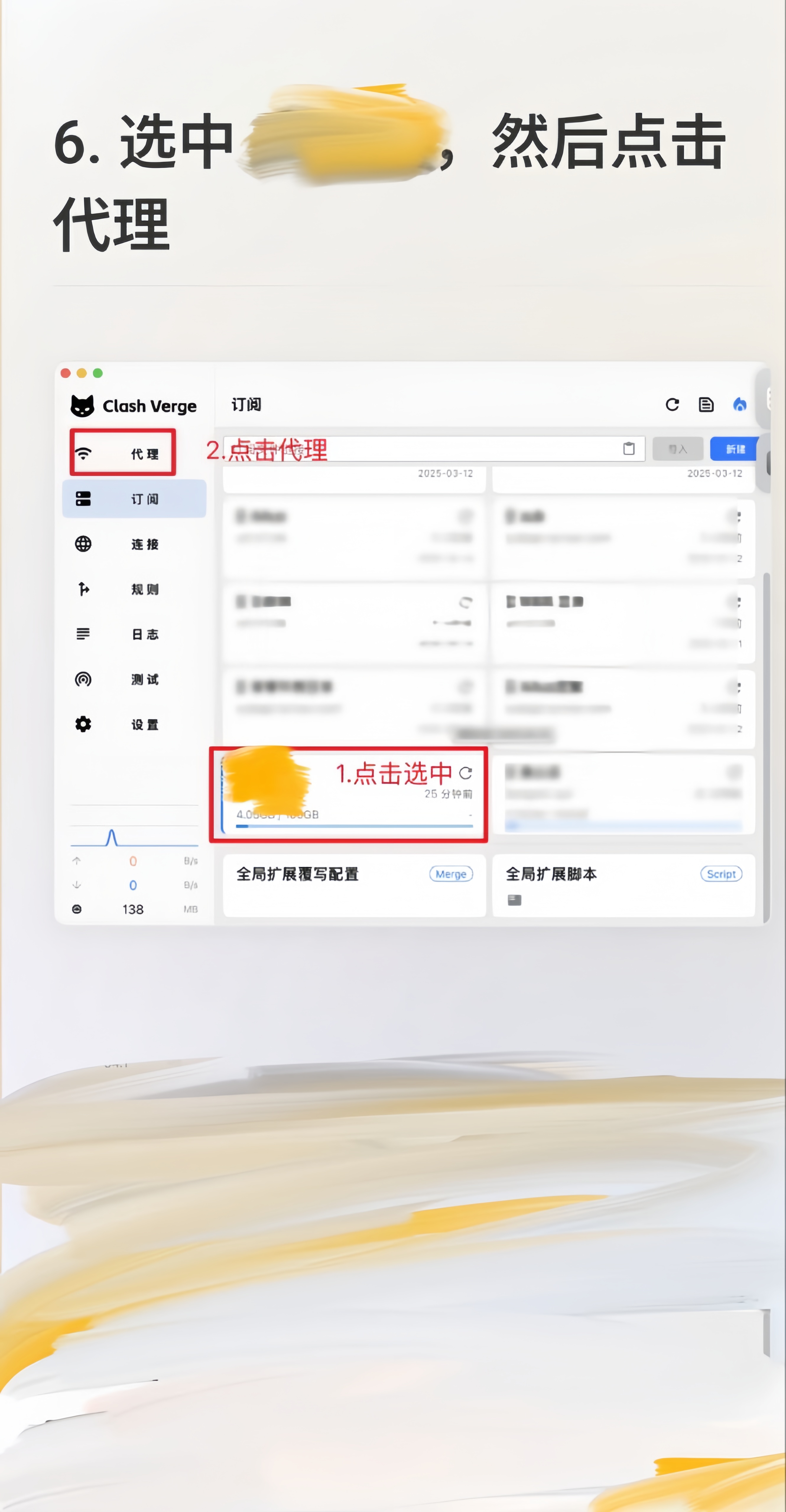
选中订阅,点击代理

1点击刚导入的订阅卡片将其选中(卡片高亮);
2点击左侧菜单的 「代理」

Clash Verge 选中订阅卡片并点击代理
选中订阅 → 进入「代理」
7

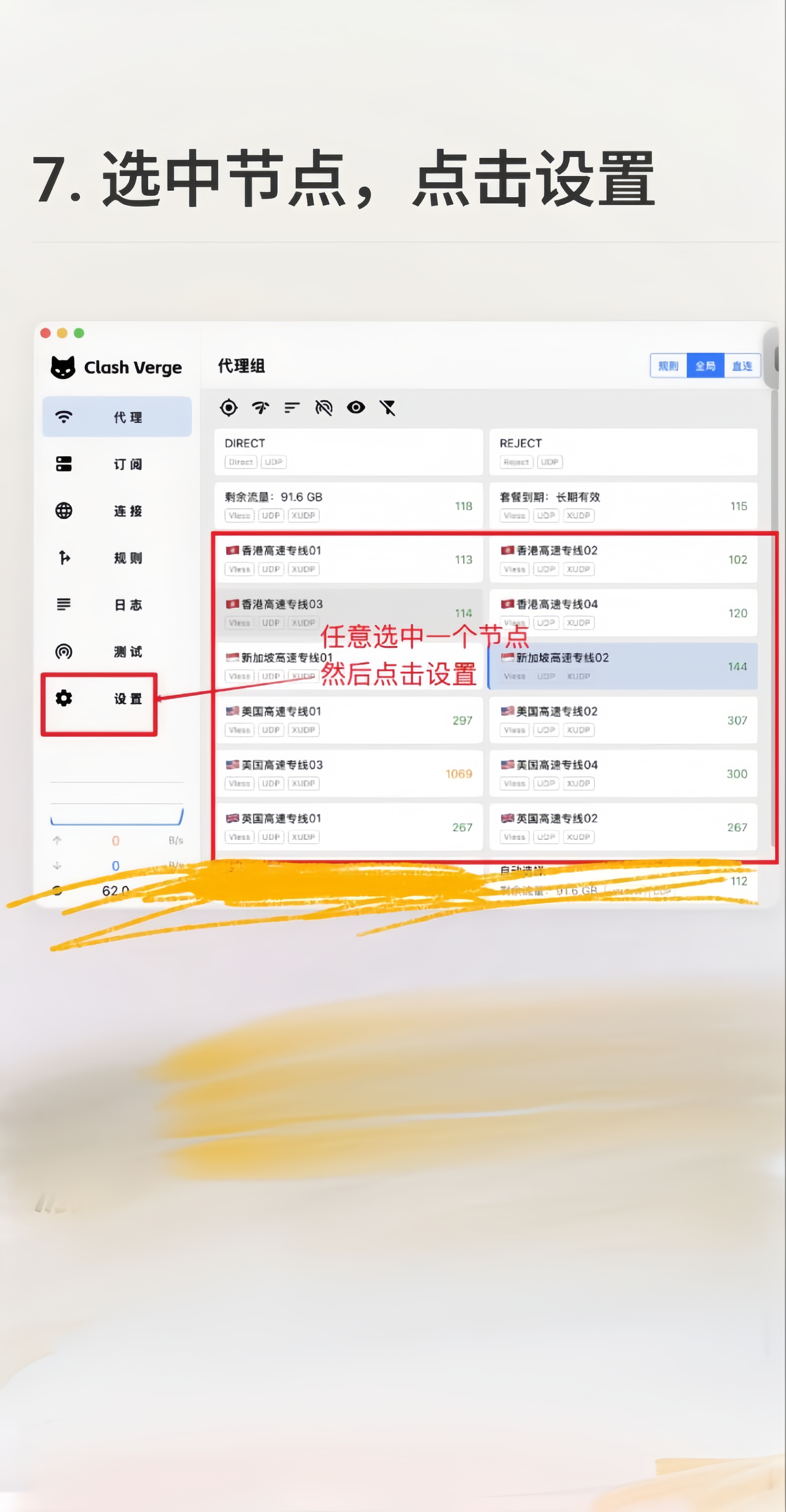
选中节点,点击设置

在「代理」里任意选中一个节点(如 香港 / 新加坡 / 美国 高速专线)。节点后面的数字是延迟,越小越快。选好后点击左侧 「设置」

Clash Verge 代理组选中节点并点击设置
选好节点 → 进入「设置」
8

打开系统代理,即刻畅游

在「系统设置」中打开 「系统代理」 开关,即可开始使用。 🎉

⚙️若部分应用走不了代理,可改用 TUN(虚拟网卡)模式,实现全局代理。
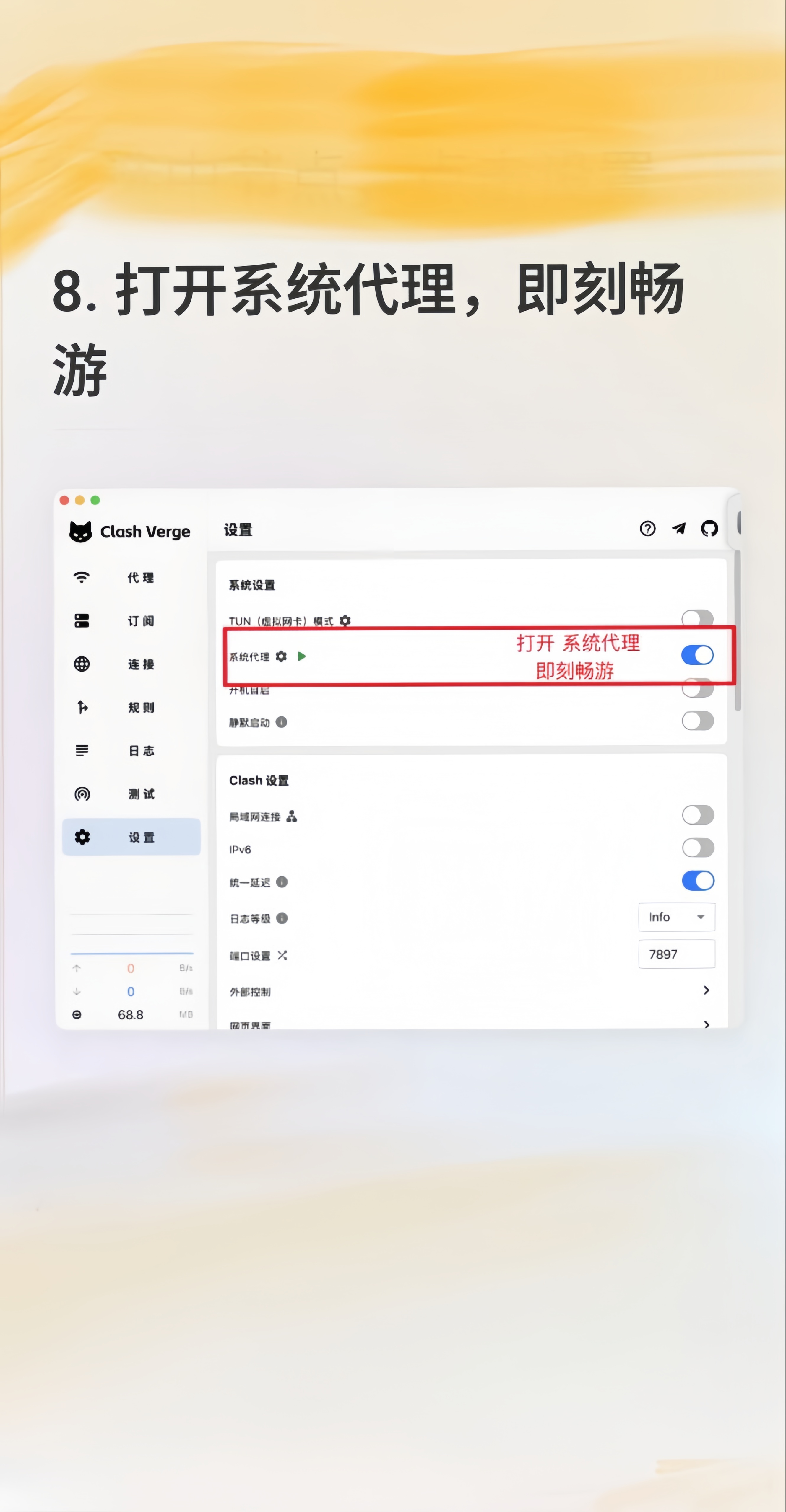
Clash Verge 打开系统代理开关
打开「系统代理」开关
English Guide
1

Download and install Clash Verge

Download the Clash Verge desktop client and install it.

2

Copy your subscription link

Log in to your account dashboard and copy the “One-click subscribe / Clash” link.

🔒Your subscription link is for personal use only — don’t share it, or your traffic may be used by others.
3

Open the Profiles page

Open Clash Verge and click “Profiles” (订阅) in the left menu.

4

Paste the subscription and import

1Paste the copied subscription link into the top input box;
2click “Import” (导入) on the right.

Paste the subscription link and click Import in Clash Verge
Paste the link → click “Import”
5

Import successful

Wait a moment — “Import successful” appears at the top right. The profile card then shows your remaining traffic and details.

💡If nothing happens after a while, close the dialog and import once more.
Clash Verge showing the import successful message
“Import successful” appears
6

Select the profile, then open Proxies

1Click the imported profile card to select it (it becomes highlighted);
2click “Proxies” (代理) in the left menu.

Select the profile and click Proxies in Clash Verge
Select profile → open “Proxies”
7

Pick a node, then open Settings

In Proxies, select any node (e.g. a Hong Kong / Singapore / US high-speed line). The number is latency — lower is faster. Then click “Settings” (设置).

Pick a node in the proxy group and open Settings in Clash Verge
Pick a node → open “Settings”
8

Turn on System Proxy — you’re connected

In Settings, turn on the “System Proxy” (系统代理) toggle and you’re ready to go. 🎉

⚙️If some apps don’t route through the proxy, switch to Tun Mode for a global proxy.
Turn on the System Proxy toggle in Clash Verge settings
Turn on the “System Proxy” toggle